Crafting a Simple "Hello, World!" Module
- Setting Up: Navigate to the app/modules directory within the Venddor IO installation folder. Here, establish a new directory named hello_world. This will be the core working space for your module. Remember, the module directory name should align with the module's ID for seamless installation.
- The Essential XML File: As discussed, the fundamental requirement for a module is the module.xml file. Craft this file and populate it with primary module attributes:
- id: Should match the module directory name, in this case, hello_world.
- version: Label it as 1.0.
- name: The module's display name in the default language. Set it as "Hello, World!"
- description: A brief about the module. Let's go with "Say hello to the world".
- priority: Set this to a high value, say 100500.
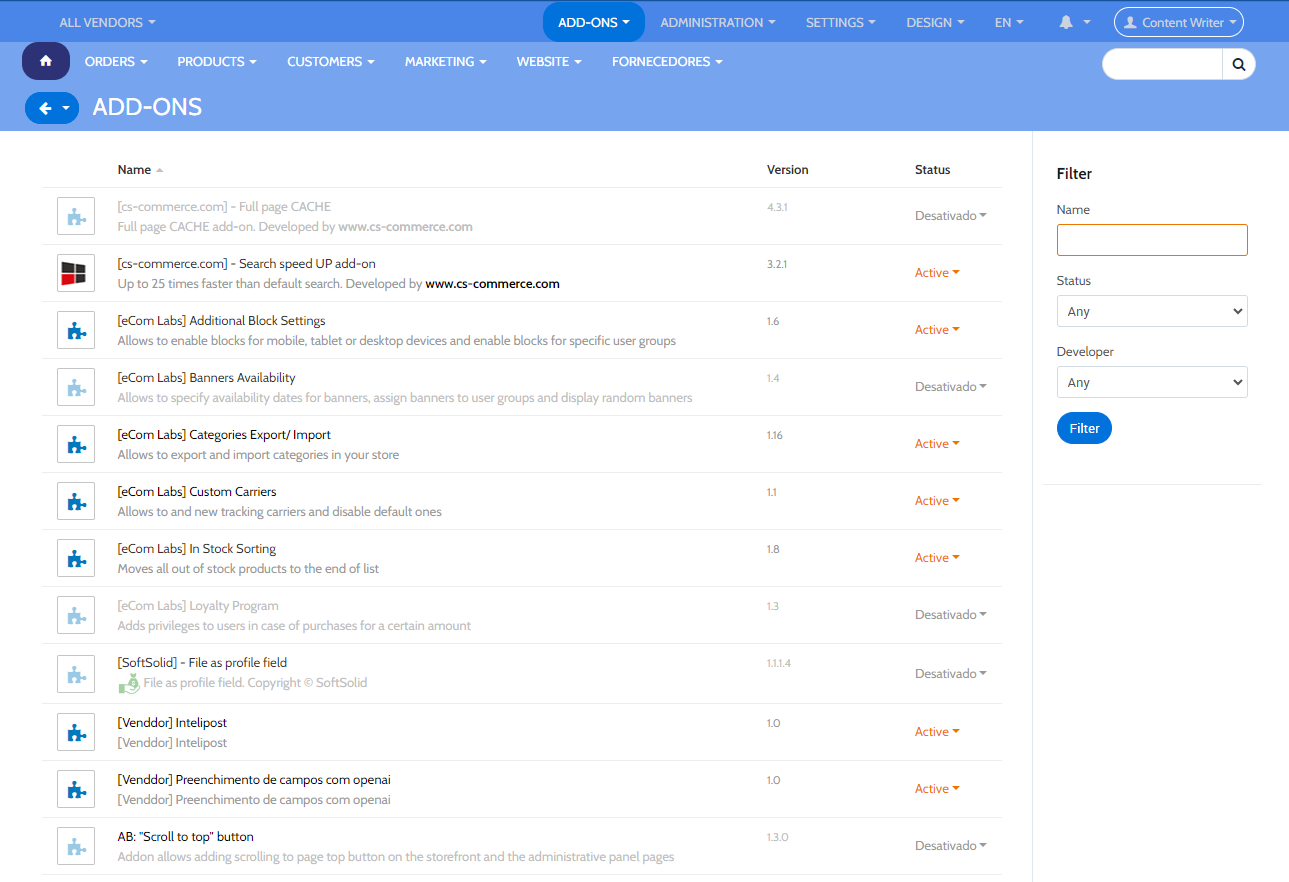
Your module.xml should resemble:
<?xml version="1.0"?>
<module scheme='3.0'>
    <id>hello_world</id>
    <version>1.0</version>
    <name>Hello World</name>
    <description>Say hello to the world</description>
    <priority>100500</priority>
</module>
Upon logging into your Venddor IO admin dashboard and navigating to Modules, your new module should be visible, and you can activate or deactivate it accordingly.
Incorporating Settings: To advance your module, introduce settings within the module.xml file. Settings are organized into sections, each with individual items that contain specific parameters like name, type, and default values.
Append the following after <priority>100500</priority>:
<settings>
    <sections>
        <section id="general">
            <items>
                <item id="some_prop">
                    <name>Enter any text</name>
                    <type>input</type>
                    <default_value>Hello World!</default_value>
                </item>
                <item id="some_dropdown">
                    <name>Pick a value from the list</name>
                    <type>selectbox</type>
                    <default_value>blue</default_value>
                        <variants>
                            <item id="red">
                                <name>Red</name>
                            </item>
                            <item id="green">
                                <name>Green</name>
                            </item>
                            <item id="blue">
                                <name>Blue</name>
                            </item>
                        </variants>
                </item>
            </items>
        </section>
    </sections>
</settings>
Re-install your "Hello World" module and explore the settings you've just embedded.
Building a simple module wasn't a challenge, was it? However, as we proceed, we'll look into crafting intricate and functionally rich modules for Venddor IO. Stay tuned!