Understanding Venddor IO Cache
Venddor IO speeds up page loading by caching scripts, styles, templates, and more. If you're making changes and they don't show up immediately, it's likely due to the cache.
Caching improves performance by storing frequently accessed data, but can sometimes prevent you from seeing your latest changes during development.
Automatic Cache Rebuilding for Templates & Static Content
To ensure Venddor IO updates the cache when you change templates or static content:
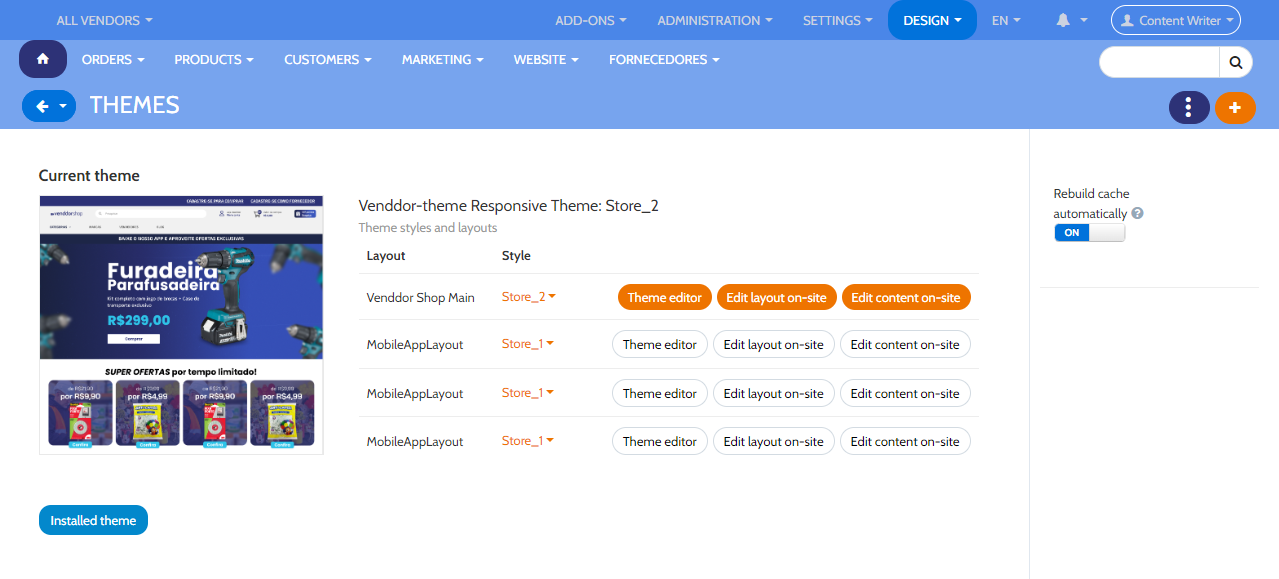
- Open the Admin Panel.
- Navigate to Design → Themes.
- Toggle the "Rebuild cache automatically" setting to "On". This tracks file changes in real time and turns off block cache.
This setting may slightly slow down your store. It's best to switch it off once you've finished development work.
For new hooks, like those added in an module's init.php, you'll need to clear the cache manually. The automatic cache rebuild won't detect these hooks immediately.
Browser Cache Clearing
To clear the cache directly in your browser:
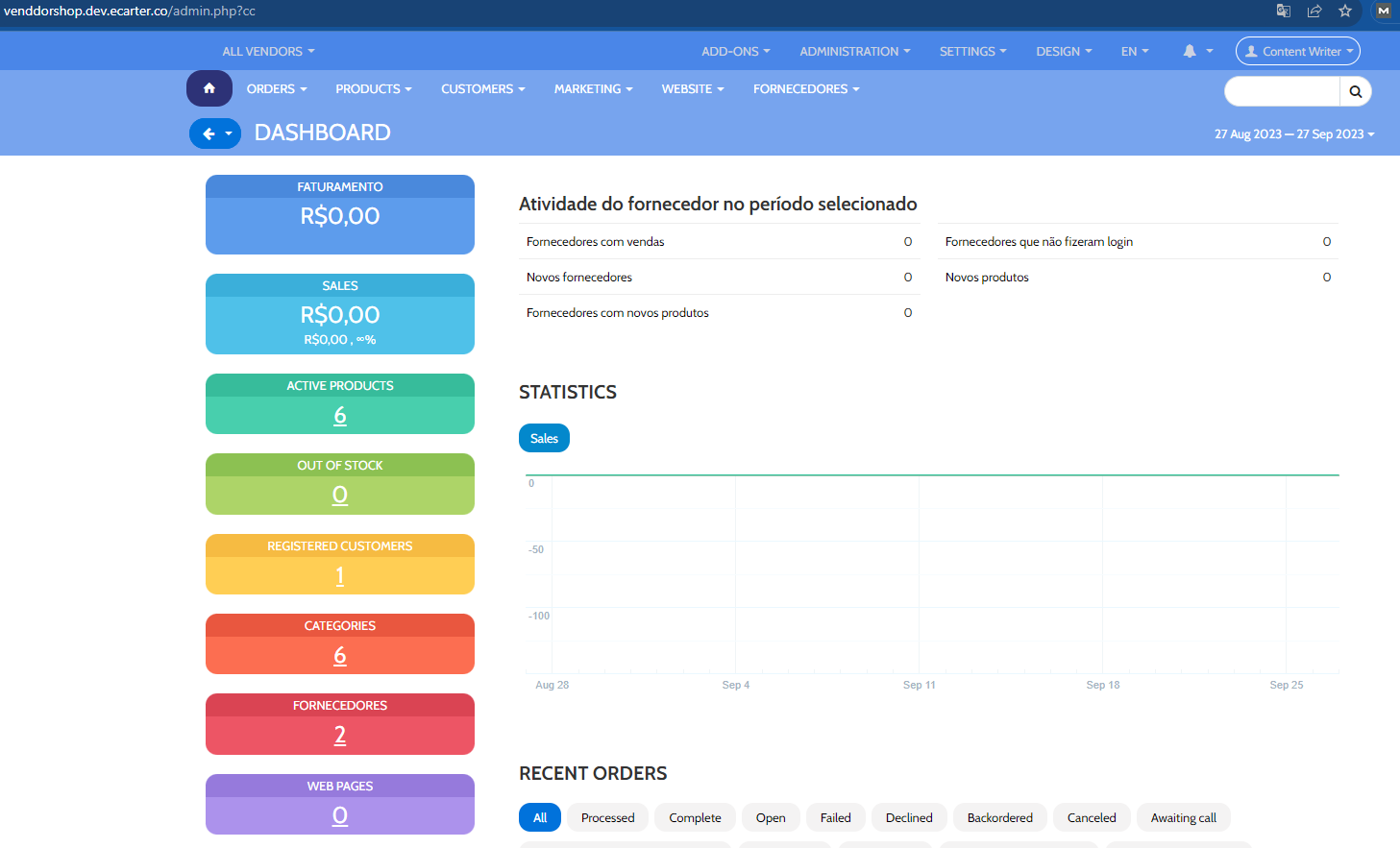
- Access the Admin Panel.
- Add the
cc parameter to your URL. It should look like this:
http://example.com/admin.php?cc
Don't forget to rename admin.php for security reasons. If you've renamed it, use the new filename in the URL.
Specific Cache Clearing Parameters
For targeted cache clearing, use these parameters:
ct: To clear automatically generated thumbnailsctpl: To clear the template cachecc: To clear registry and miscellaneous cache
For example, to clear both template and miscellaneous cache:
http://example.com/admin.php?ctpl&cc