Introduction to Debugging
Venddor IO provides powerful debugging tools to help developers troubleshoot issues efficiently. This guide covers the essential debugging techniques for PHP controllers, Smarty templates, and AJAX operations.
Using fn_print_r() for Debugging
In Venddor IO, you can use fn_print_r(); to display details about specific PHP variables. It's a handy tool when debugging. If you need to display variables and then stop the program execution, there's fn_print_die();.
Debugging in PHP Controllers
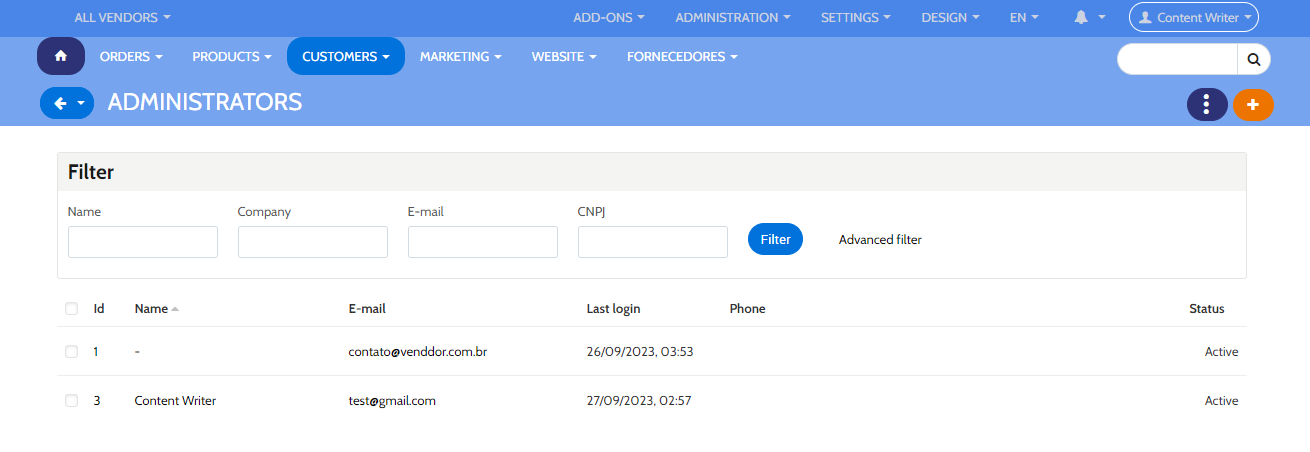
For example, to inspect details about administrators in Customers → Administrators, check the URL first. If it's like:
http://example.com/admin.php?dispatch=profiles.manage&user_type=A
Then, based on the dispatch parameter, the relevant controller is profiles.php, found in app/controllers/backend. Look for the section starting with $mode == 'manage'.
Say you find this code:
list($users, $search) = fn_get_users($_REQUEST, $auth, Registry::get('settings.Appearance.admin_elements_per_page'));
Add fn_print_r($users); below it, and it will display the details from the $users array.
Debugging in Smarty Templates
For Smarty templates (.tpl files), you can still use fn_print_r();, but the syntax differs:
{$variable_name|@fn_print_r}
For instance, to modify the Customers → Administrators template, edit manage.tpl in design/backend/templates/view/profiles. Add this at the start:
{$users|@fn_print_r}
This displays user details, similar to the PHP controller approach.
Debugging AJAX
Debugging AJAX can be tricky, but with development mode and error notifications enabled, it becomes manageable.
For AJAX-related issues, even with notifications and development mode, errors might not show. To spot the issue, you can disable AJAX temporarily.
Use your browser's inspector on the problematic element and alter or remove cm-ajax. For example, change it to cm-ajax1.
Say the Add to Cart button doesn't work. Inspecting its code, you'd see cm-ajax within the form. Alter it to cm-ajax1.
After that, clicking Add to Cart will show an error page detailing where the issue occurred.